
On-demand tunnels
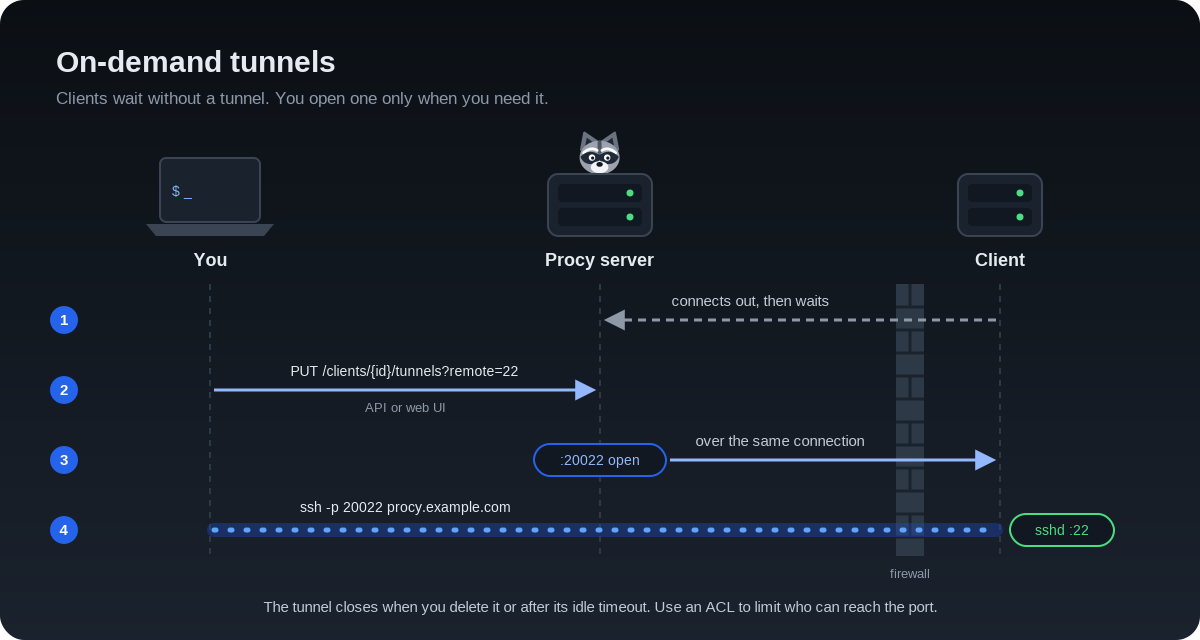
Tunnels that a client opens on start, with remotes in rport.conf, are always up. With many machines, most of them
sit unused, and each keeps a port open on the internet. Instead, clients can connect without a tunnel and wait. You open
a tunnel from the server only when you need it, and close it when you are done.
The rportd.example.conf enables the management API on port 3000. Set up the [api] section, for example:
[api]
  ## Defines the IP address and port the API server listens on.
  ## An empty address disables the API.
  address = "127.0.0.1:3000"
  ## Defines a <user>:<password> pair for accessing the API.
  auth = "admin:<your-password>"
This opens the API and enables HTTP basic authentication with a single user admin who has access to the API.
A JWT secret for API tokens is generated on first start and saved in the data directory.
Restart the rportd after any changes to the configuration. Read more about API authentication options.
Choose a strong password.rportdrefuses to start with the sample credentials fromrportd.example.conf(admin:foobaz,clientAuth1:1234) and with placeholder or too-short secrets. If you setjwt_secretyourself, use at least 16 characters, e.g.openssl rand -hex 32.
By default the built-in web server can run the API only on ports above 1024. To circumvent this limit, refer to running the API on privileged ports.If you expose your API to the public internet, it’s highly recommended to enable HTTPS. Read the quick HTTPS howto.
The examples in these docs read the password from a shell variable, so set it first: read -rs PASSWORD.
Test if you set up the API properly by querying its status with curl -s -u admin:$PASSWORD http://localhost:3000/api/v1/status.
The API always returns a minified json formatted response. The large output is hard to read. In all further examples, we use the command-line tool jq to reformat the json with line breaks and indentation for better readability.jqis included in almost any distribution, for Windows you can download it from the jq download page.
Example of a human-readable API status
~# curl -s -u admin:$PASSWORD http://localhost:3000/api/v1/status |jq
{
  "data": {
    "connect_url": ["http://0.0.0.0:8080"],
    "fingerprint": "2a:c8:79:09:80:ba:7c:60:05:e5:2c:99:6d:75:56:24",
    "clients_connected": 3,
    "clients_disconnected": 1,
    "version": "0.9.31"
  }
}
Invoke the Procy client without specifying a tunnel but with some extra data.
rport --id my-client-1 \
  --fingerprint <YOUR_FINGERPRINT> \
  --tag Linux --tag "Office Berlin" \
  --name "My Test VM" --auth client1:<CLIENT_PASSWORD> \
  procy.example.com:8080
Add auth and fingerprint as already explained.
The client connects to the server and waits, without a tunnel.
On the server, you can supervise the attached clients using
curl -s -u admin:$PASSWORD http://localhost:3000/api/v1/clients.
Here is an example:
curl -s -u admin:$PASSWORD http://localhost:3000/api/v1/clients|jq
[
  {
    "id": "my-client-1",
    "name": "My Test VM",
    "os": "Linux my-devvm-v3 5.4.0-37-generic #41-Ubuntu SMP Wed Jun 3 18:57:02 UTC 2020 x86_64 x86_64 x86_64 GNU/Linux",
    "os_arch": "amd64",
    "os_family": "debian",
    "os_kernel": "linux",
    "os_full_name": "Debian",
    "os_version": "5.4.0-37",
    "os_virtualization_system":"KVM",
    "os_virtualization_role":"guest",
    "cpu_family":"59",
    "cpu_model":"6",
    "cpu_model_name":"Intel(R) Xeon(R) Silver 4110 CPU @ 2.10GHz",
    "cpu_vendor":"Intel",
    "num_cpus":16,
    "mem_total":67020316672,
    "timezone":"UTC (UTC+00:00)",
    "hostname": "my-devvm-v3",
    "ipv4": [
      "192.168.3.148"
    ],
    "ipv6": [
      "fe80::20c:29ff:fec8:b1f"
    ],
    "tags": [
      "Linux",
      "Office Berlin"
    ],
    "version": "0.9.31",
    "address": "87.123.136.***:63552",
    "tunnels": []
  },
   {
    "id": "aa1210c7-1899-491e-8e71-564cacaf1df8",
    "name": "Random Procy Client",
    "os": "Linux alpine-3-10-tk-01 4.19.80-0-virt #1-Alpine SMP Fri Oct 18 11:51:24 UTC 2019 x86_64 Linux",
    "os_arch": "amd64",
    "os_family": "alpine",
    "os_kernel": "linux",
    "os_full_name": "Alpine Linux",
    "os_version": "4.19.80-0",
    "os_virtualization_system":"",
    "os_virtualization_role":"",
    "cpu_family":"6",
    "cpu_model":"79",
    "cpu_model_name":"Intel(R) Xeon(R) CPU E5-2630 v4 @ 2.20GHz",
    "cpu_vendor":"Intel",
    "num_cpus":4,
    "mem_total":8363900928,
    "timezone":"CEST (UTC+02:00)",
    "hostname": "alpine-3-10-tk-01",
    "ipv4": [
      "192.168.122.117"
    ],
    "ipv6": [
      "fe80::b84f:aff:fe59:a0ba"
    ],
    "tags": [
      "Linux",
      "Datacenter 1"
    ],
    "version": "0.9.31",
    "address": "88.198.189.***:43206",
    "tunnels": [
      {
        "lhost": "0.0.0.0",
        "lport": "2222",
        "rhost": "0.0.0.0",
        "rport": "22",
        "id": "1"
      }
    ]
  }
]
There is one client connected with an active tunnel. The second client is in standby mode. Read more about managing tunnels through the API or read the API docs.
The Procy server runs as an unprivileged user, and you should keep it that way. Unprivileged users can’t open ports
below 1024, but you can give the rportd binary the capability to do so:
sudo setcap CAP_NET_BIND_SERVICE=+eip /usr/local/bin/rportd
Now you can use 0.0.0.0:443 as the API address. Run the command again every time the rportd binary changes, for
example after each update.