
Command execution
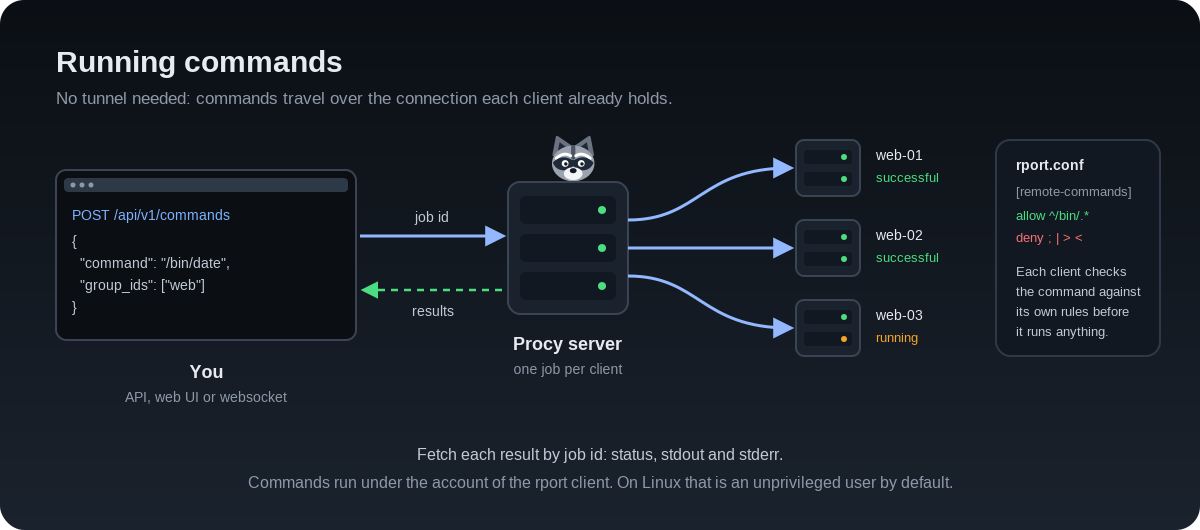
Command can be executed via:
Here we would show examples how to do it via REST API.
Example:
CLIENTID=my-client
curl -s -u admin:$PASSWORD http://localhost:3000/api/v1/clients/$CLIENTID/commands \
-H "Content-Type: application/json" -X POST \
--data-raw '{
  "command": "date",
  "timeout_sec": 10
}'|jq
You will get back a job id. Now execute a query to get the result of the command.
JOBID=f72b69fd-f418-40c3-ab62-4ce2c2022c58
curl -s -u admin:$PASSWORD http://localhost:3000/api/v1/clients/$CLIENTID/commands/$JOBID|jq
{
    "data": {
        "jid": "f72b69fd-f418-40c3-ab62-4ce2c2022c58",
        "status": "successful",
        "finished_at": "2020-10-15T15:30:12.937267522Z",
        "client_id": "my-client",
        "command": "date",
        "cwd": "/users/root",
        "is_sudo": false,
        "interpreter": "/bin/sh",
        "pid": 908526,
        "started_at": "2020-10-15T15:30:12.934238782Z",
        "created_by": "admin",
        "timeout_sec": 10,
        "result": {
            "stdout": "Thu Oct 15 15:30:12 UTC 2020
",
            "stderr": ""
        }
    }
}
The Procy client supervises the command for the given {timeout_sec} seconds. If the timeout is exceeded the command state is considered ‘unknown’ but the command keeps running.
It can be done by using:
- client IDs
- group IDs
- both client IDs and group IDs
Execution options:
execute_concurrently- By default, commands are not executed concurrently. To execute it concurrently set it to
truein a request. abort_on_error- By default, if the execution fails on some client, the entire cycle is aborted.
But it is ignored in parallel mode when
"execute concurrently": true. Disablingabort_on_errorexecutes the command on all clients regardless there is an error or not.
Example:
curl -s -u admin:$PASSWORD http://localhost:3000/api/v1/commands -H "Content-Type: application/json" -X POST \
--data-raw '{
  "command": "/bin/date",
  "client_ids": ["local-test-client-2", "local-test-client-3", "local-test-client-4"],
  "timeout_sec": 30,
  "cwd": "/users/root",
  "is_sudo": false,
  "execute_concurrently": true
}
'|jq
You will get back a job id. Now execute a query to get the result of the command.
JOBID=f206854c-af1d-4589-9adc-bdf3553ec68b
curl -s -u admin:$PASSWORD http://localhost:3000/api/v1/commands/$JOBID|jq
{
  "data": {
    "jid": "f206854c-af1d-4589-9adc-bdf3553ec68b",
    "started_at": "2021-01-28T19:39:16.197965+02:00",
    "created_by": "admin",
    "client_ids": [
      "local-test-client-2",
      "local-test-client-3",
      "local-test-client-4"
    ],
    "group_ids": null,
    "command": "/bin/date",
    "cwd": "",
    "is_sudo": false,
    "interpreter": "",
    "timeout_sec": 30,
    "concurrent": true,
    "abort_on_err": false,
    "jobs": [
      {
        "jid": "4012fcf8-0dfc-44c4-a3de-de1b133bb13e",
        "status": "successful",
        "finished_at": "2021-01-28T19:39:16.227685+02:00",
        "client_id": "local-test-client-2",
        "command": "/bin/date",
        "cwd": "",
        "is_sudo": false,
        "interpreter": "/bin/sh",
        "pid": 16242,
        "started_at": "2021-01-28T19:39:16.203396+02:00",
        "created_by": "admin",
        "timeout_sec": 30,
        "multi_job_id": "f206854c-af1d-4589-9adc-bdf3553ec68b",
        "result": {
          "stdout": "Thu Jan 28 19:39:16 EET 2021
",
          "stderr": ""
        }
      },
      {
        "jid": "7b8d90a0-f100-4922-98e6-4da46853c020",
        "status": "successful",
        "finished_at": "2021-01-28T19:39:16.229916+02:00",
        "client_id": "local-test-client-3",
        "command": "/bin/date",
        "cwd": "",
        "is_sudo": false,
        "interpreter": "/bin/sh",
        "pid": 16241,
        "started_at": "2021-01-28T19:39:16.203738+02:00",
        "created_by": "admin",
        "timeout_sec": 30,
        "multi_job_id": "f206854c-af1d-4589-9adc-bdf3553ec68b",
        "result": {
          "stdout": "Thu Jan 28 19:39:16 EET 2021
",
          "stderr": ""
        }
      },
      {
        "jid": "bb936408-8c02-49b2-a0ac-2750ac44026c",
        "status": "successful",
        "finished_at": "2021-01-28T19:39:16.228102+02:00",
        "client_id": "local-test-client-4",
        "command": "/bin/date",
        "cwd": "",
        "is_sudo": false,
        "interpreter": "/bin/sh",
        "pid": 16243,
        "started_at": "2021-01-28T19:39:16.204308+02:00",
        "created_by": "admin",
        "timeout_sec": 30,
        "multi_job_id": "f206854c-af1d-4589-9adc-bdf3553ec68b",
        "result": {
          "stdout": "Thu Jan 28 19:39:16 EET 2021
",
          "stderr": ""
        }
      }
    ]
  }
}
How to create client groups please see the link.
Assume we have already created a client group with group-1 id.
Example:
curl -s -u admin:$PASSWORD http://localhost:3000/api/v1/commands -H "Content-Type: application/json" -X POST \
--data-raw '{
  "command": "/bin/date",
  "group_ids": ["group-1"],
  "execute_concurrently": false,
  "abort_on_error": true,
  "cwd": "/users/root",
  "is_sudo": true
}
'|jq
You will get back a job id. Now execute the same query that is in a previous example to get the result of the command.
The commands are executed from the account that runs the rport client.
On Linux, this is an unprivileged user by default. Do not run rport as root.
On Windows, rport runs as a local service account that by default has administrative rights.
On the client using the rport.conf you can configure and limit the execution of remote commands.
[remote-commands]
## Enable or disable remote commands.
## Defaults: true
#enabled = true

## Allow commands matching the following regular expressions.
## The filter is applied to the command sent. Full path must be used.
## See {order} parameter for more details how it's applied together with {deny}.
## Defaults: ['^/usr/bin/.*','^/usr/local/bin/.*','^C:\Windows\System32\.*']
#allow = ['^/usr/bin/.*','^/usr/local/bin/.*','^C:\Windows\System32\.*']

## Deny commands matching one of the following regular expressions.
## The filter is applied to the command sent. Full path must be used.
## See {order} parameter for more details how it's applied together with {allow}.
## With the below default filter only single commands are allowed.
## Defaults: ['(\||<|>|;|,|
|&)']
#deny = ['(\||<|>|;|,|
|&)']

## Order: ['allow','deny'] or ['deny','allow']. Order of which filter is applied first.
## Defaults: ['allow','deny']
##
## order: ['allow','deny']
## First, all allow directives are evaluated; at least one must match, or the command is rejected.
## Next, all deny directives are evaluated. If any matches, the command is rejected.
## Last, any commands which do not match an allow or a deny directive are denied by default.
## Example:
## allow: ['^/usr/bin/.*']
## deny: ['^/usr/bin/zip']
## All commands in /usr/bin except '/usr/bin/zip' can be executed. Full path must be used.
##
## order: ['deny','allow']
## First, all deny directives are evaluated; if any match,
## the command is denied UNLESS it also matches an allow directive.
## Any command which do not match any allow or deny directives are permitted.
## Example:
## deny: ['.*']
## allow: ['zip$']
## All commands are denied except those ending in zip.
##
#order = ['allow','deny']

## Limit the maximum length of the command or script output that is sent back.
## Applies to the stdout and stderr separately.
## If exceeded {send_back_limit} bytes are sent.
## Defaults: 4M
#send_back_limit = 4194304
Examples:
On Linux only allow commands in /usr/bin and /usr/local/bin and command prefixed with sudo -n.
allow = [
    '^\/usr\/bin\/.*',
    '^\/usr\/local\/bin\/.*',
    '^sudo -n .*'
]
On Windows try this
allow = [
    '^C:\Windows\System32.*',
    '^C:\Users\Administrator\scripts\.*\.bat'
]
Using the above examples requires sending commands with a full path.